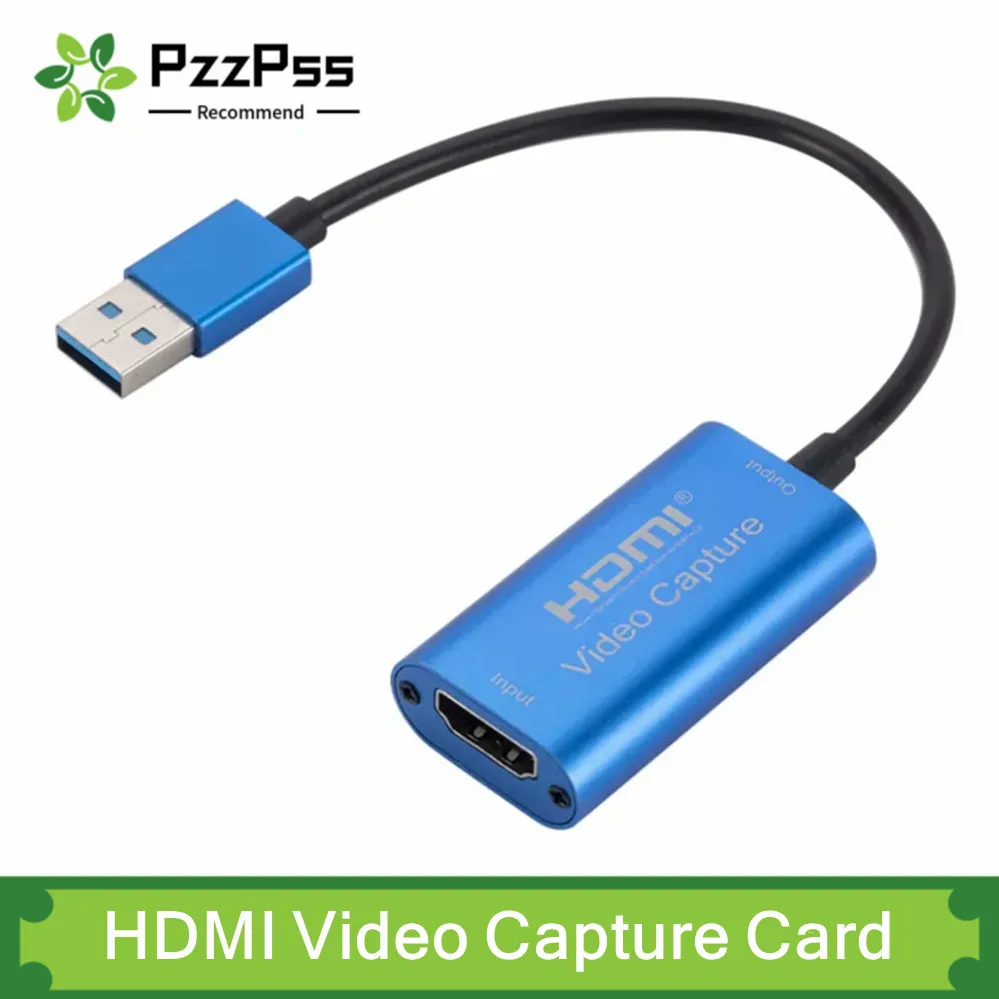
USB-C has become the true standard for modern gadgets, from smartphones and laptops to tablets and even professional equipment. This compact, symmetrical connector promises high data transfer speeds, fast charging, and versatility. However, behind a similar appearance, different capabilities and technical specifications can be hidden, which often misleads buyers. Before purchasing a new cable, adapter, or device, such as a USB 3.0 video capture card, it is important to understand the nuances. This article will tell you about ten key things you should know about USB-C so that your purchase fully meets your expectations and the technical requirements of your devices.

? Table of Contents
- 1. USB-C is Just a Physical Connector, Not a Standard
- 2. Data Transfer Speed: From USB 2.0 to Thunderbolt 4
- 3. Charging Power (Power Delivery)
- 4. Alternate Modes (Alt Mode)
- 5. How to Choose the Right USB-C Cable?
- 6. Compatibility with Older Devices
- 7. Cable Safety and Quality
- 8. USB-C in the World of Audio
- 9. The Future is USB4
- 10. Practical Example: Choosing a Video Capture Device
- Conclusion:
1. USB-C is Just a Physical Connector, Not a Standard
The most common mistake is to think that all USB-C cables and ports are the same. In reality, USB-C only describes the shape of the connector, its size, and the arrangement of contacts. However, the technologies that work through this connector can differ dramatically.
The same USB-C port can support different protocols: USB 2.0, USB 3.2 Gen 1 (formerly USB 3.0), USB 3.2 Gen 2, Thunderbolt 3 or Thunderbolt 4, DisplayPort, or display mode. Therefore, when buying a device, be sure to pay attention not to the shape of the connector, but to which specific standards it supports. For example, for efficient operation of a video capture device in Full HD 1080p, you typically need a USB 3.0 (USB 3.2 Gen 1) port or higher, not a slow USB 2.0.
2. Data Transfer Speed: From USB 2.0 to Thunderbolt 4
Bandwidth depends on the version of the USB or Thunderbolt standard. The good old USB 2.0, which is sometimes used in the cheapest USB-C cables, provides only up to 480 Mbps. This is unacceptable for transmitting high-quality video or quickly transferring large files.
Key speed standards for USB-C:
USB 3.2 Gen 1 (USB 3.0): up to 5 Gbps. This is the minimum for comfortable use of external drives or video capture devices, like in our example.
USB 3.2 Gen 2: up to 10 Gbps. Ideal for fast SSDs.
Thunderbolt 3/4: up to 40 Gbps. This is the top standard, which also allows connecting external 4K and 5K monitors.
3. Charging Power (Power Delivery)
USB-C can transmit significant power for charging devices. USB Power Delivery (USB PD) technology allows charging not only smartphones but also laptops, monitors, and other equipment with power up to 240W (according to the latest USB PD 3.1 standard).
However, not every USB-C cable supports USB PD. The charging power depends on the capabilities of both the charger and the cable itself. To charge a laptop, you need a cable that supports 60W, 100W, or more. A regular thin cable from a smartphone will not work for this and may even overheat.
4. Alternate Modes (Alt Mode)
One of the main advantages of USB-C is the ability to transmit not only data and power but also video signals. Thanks to Alternate Modes, you can output an image to a monitor, TV, or projector through a single connector.
The most common Alt Modes are DisplayPort and HDMI. Many modern laptops with USB-C support DisplayPort Alt Mode, allowing you to connect to a monitor using a simple adapter or a USB-C to DisplayPort cable. This makes USB-C a truly universal "all-in-one" port.
5. How to Choose the Right USB-C Cable?
The choice of cable should be based on the purposes for which you plan to use it. Here are a few simple rules:
- For charging a smartphone/tablet: most cables will work, but for fast charging, check for USB PD support.
- For data transfer from an external drive or video capture device: you definitely need a cable that supports USB 3.0 (USB 3.2 Gen 1) or higher. USB 2.0 cables will be very slow.
- For connecting to a monitor or charging a laptop: you need a cable that supports the appropriate Alt Mode (e.g., DisplayPort) and USB PD power of 60W or more.
- For working with Thunderbolt devices: you definitely need a certified Thunderbolt cable, which is usually more expensive.
6. Compatibility with Older Devices
The world didn't switch to USB-C instantly, so we still have many devices with older connectors: USB-A, Micro-USB, HDMI. Fortunately, there are a large number of USB-C adapters and converters.
For example, to connect a video capture device with an HDMI output to a laptop with a USB-C port, you will need an HDMI to USB-C adapter or cable. The main thing is to ensure that the adapter supports the required USB version (e.g., USB 3.0) for transmitting the video stream without delays. This makes USB-C a future-oriented investment.
7. Cable Safety and Quality
Not all USB-C cables are created equal. Cheap, uncertified cables can be dangerous. They can overheat, damage the device's port, or even cause a short circuit.
What to look for when choosing a cable:
Look for cables from well-known brands or those that have relevant certifications (e.g., the USB-IF logo). Pay attention to reviews from other buyers. The thickness of the cable often (but not always) indicates the quality of the wiring and possible support for high charging currents.
8. USB-C in the World of Audio
USB-C can transmit high-quality digital audio signals. Many modern smartphones have abandoned the 3.5mm audio jack in favor of USB-C. To listen to music with regular headphones, you will need either a USB-C to 3.5mm adapter or headphones with their own USB-C connector.
This also opens up possibilities for connecting high-quality external DACs (digital-to-analog converters) for audiophiles directly to a smartphone or laptop through a single universal port.
9. The Future is USB4
USB4 is the next generation of the standard, combining the best features of USB 3.2 and Thunderbolt 3. It necessarily uses the USB-C connector and offers a minimum speed of 20 Gbps, with the possibility of up to 40 Gbps.
USB4 provides better bandwidth allocation between data, video, and power, making operation even more efficient and predictable. Devices with USB4 are already appearing on the market, and this standard will become the main one in the coming years.
10. Practical Example: Choosing a Video Capture Device
Let's return to our example — a USB 3.0 video capture device with HDMI to USB-C. For it to work stably and transmit 1080p video without artifacts and delays, several conditions must be met.
Firstly, your computer or laptop must have a USB-C port that supports the USB 3.0 standard (5 Gbps) or higher. A USB 2.0 port will not work. Secondly, you will need a high-quality USB-C to USB-C cable that also supports USB 3.0. If your device only has a USB-A port, you will need a USB-C to USB-A adapter, but it must also support high speeds, otherwise the capture quality will suffer.

Conclusion:
USB-C is a powerful and versatile tool, but its potential is fully realized only with conscious choice. Before buying a cable, adapter, or new gadget, always find out which specific standards (USB 3.2, Thunderbolt, Power Delivery) it supports. This will save you from disappointments with speed, charging, or compatibility. Considering these ten aspects, you will be able to make an informed choice and use the capabilities of modern technology as efficiently as possible.