The modern digital world is unimaginable without USB connectors, yet their variety sometimes baffles even experienced users. From the classic USB-A to the compact Type-C, from high-speed USB 3.2 to the universal Thunderbolt, each standard has its own features and purpose. That is why choosing the right adapter becomes a critically important task for connecting a new gadget, transferring data, or simply charging a device. This article will be your guide to the world of adapters, where we will break down in detail how to navigate connector types, transfer speeds, and what to look for when buying. You will learn what the USB compatibility matrix is and how to easily find the perfect adapter for any task, whether it's connecting an old printer to a new laptop or reading data from a camera.
? Table of Contents
Basics: Types of USB Connectors and Their Purpose
Before you go shopping for an adapter, you need to clearly understand which connectors you are dealing with. There aren't that many main physical types, but their variations can be confusing. The classic rectangular port we see on computers, charging stations, and speakers is USB Type-A. It comes in different generations (USB 2.0, 3.0, 3.1), which affects speed, but the shape remains familiar.
Miniature Micro-USB connectors were the standard for smartphones and tablets for a long time, but today they are being actively replaced by the modern USB Type-C. The oval, symmetrical Type-C is a true revolution because it is not only compact but also universal: one connector can transmit data, 4K video signals, and power for charging. Separately, it's worth mentioning the "square" USB Type-B, often used in printers and external sound cards, and its miniature version, Mini-USB.
Knowing the exact names of the connectors on your device and cable already insures you 90% against mistakes. Remember: Type-A is the "large standard," Type-C is the "oval reversible," and Micro-USB is the "small and trapezoidal."
USB Compatibility Matrix: Your Main Navigator
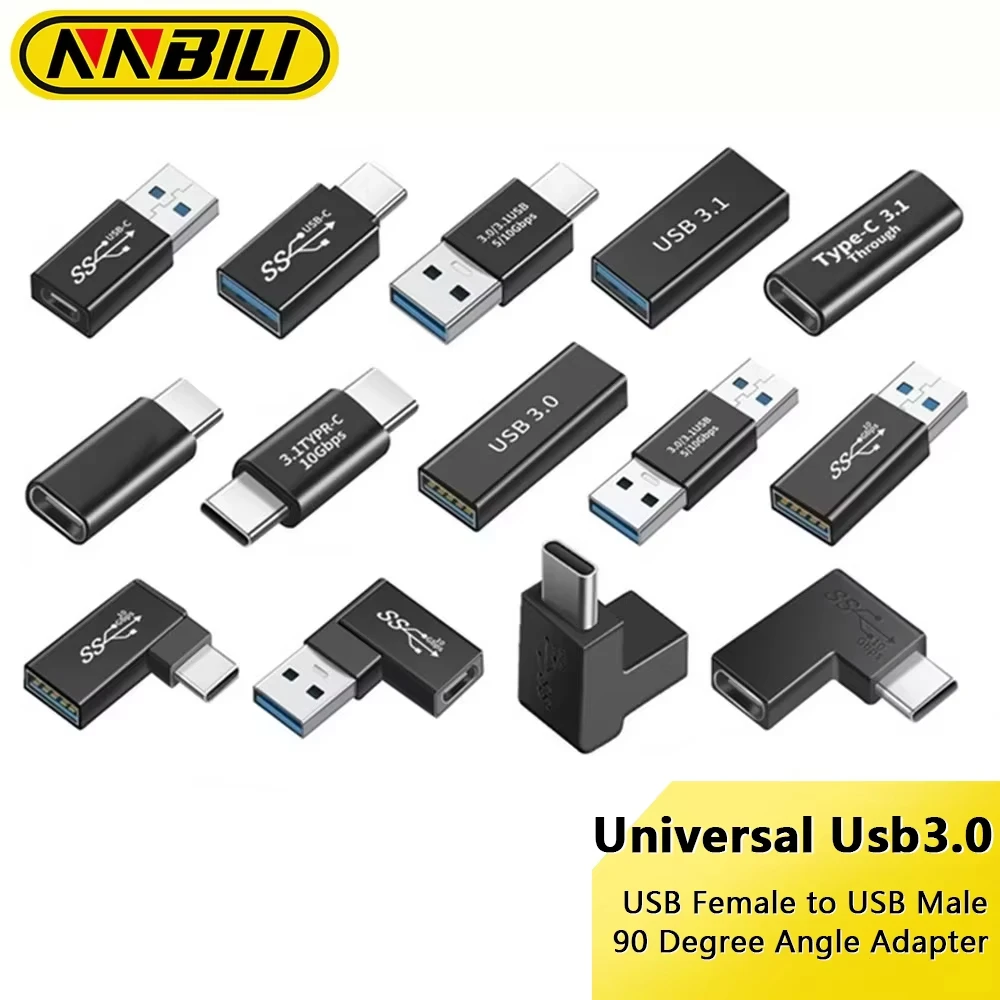
The compatibility matrix is a handy tool that, in the form of a table or diagram, shows which types of connectors can be connected to each other using adapters. Imagine a table where the vertical axis lists the connectors on your device (e.g., laptop), and the horizontal axis lists the connectors on the peripheral (e.g., flash drive). At the intersection, it indicates exactly which type of adapter you need.
Most common scenarios using the compatibility matrix:
For example, if your new laptop only has USB Type-C ports and you need to connect a flash drive with an old USB-A, then at the intersection of "Type-C (host)" and "USB-A (device)" you will find the "USB-C to USB-A" adapter. Another popular request is connecting a modern Type-C smartphone to a car stereo with a Micro-USB port. Here, a "USB-C (male) to Micro-USB (female)" adapter will help.
Using such a matrix is simple: determine the two types of connectors you need to connect and find the corresponding cell. This will save you from unnecessary questions and guarantee that the purchased accessory will work.
Data Transfer Speed and Power Standards
However, compatibility in shape is only half the battle. It is critically important to consider the technological standards supported by your devices and the adapter itself. Data transfer speed is indicated by USB generations: USB 2.0 (up to 480 Mbps), USB 3.0/3.1 Gen 1 (up to 5 Gbps), USB 3.1 Gen 2 (up to 10 Gbps), and the latest USB4 or Thunderbolt (40 Gbps and more).
If you connect a high-speed USB 3.1 Gen 2 solid-state SSD flash drive through a cheap adapter that only supports USB 2.0, the speed will drop tenfold. Therefore, always check which data transfer standard is stated on the adapter. For most modern tasks, the minimum is support for USB 3.0 (5 Gbps).
An equally important parameter is power. Some adapters only support data transfer, while others can pass current for charging devices. If you need to charge a laptop or smartphone through the adapter, be sure to look for models with Power Delivery (PD) support. This guarantees safety and optimal charging speed.
Special Designs: Right-Angle and Rotating Adapters
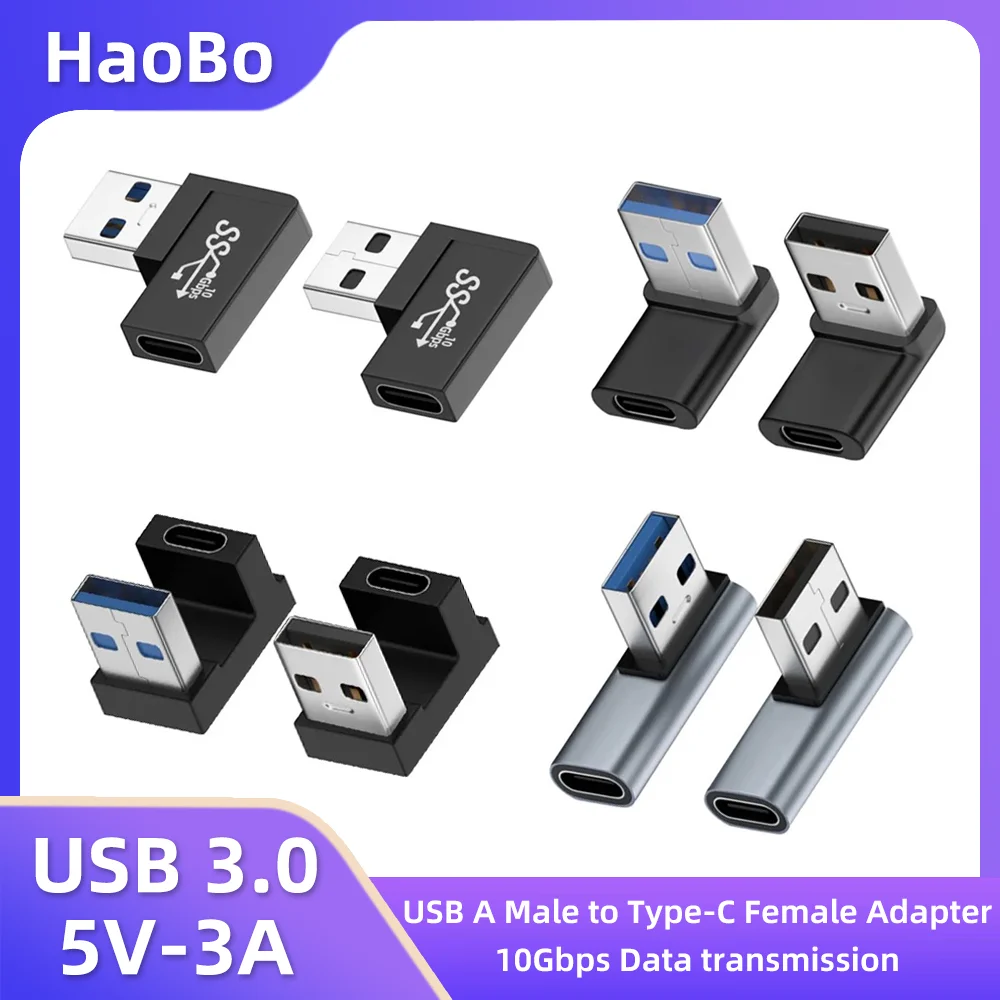
A standard straight adapter is not always the most convenient solution. In tight spaces, when a laptop is close to a wall, or for conveniently connecting a flash drive to a monitor, adapters with non-standard geometry come to the rescue. The most popular among them are right-angle adapters, like the Hao Bo USB 3.0 to Type-C model, which has a 90-degree bend.
The advantages of right-angle adapters are obvious:
Firstly, they save space and reduce mechanical stress on the device's port. The cable doesn't stick out to the side and doesn't interfere with placing the laptop in a bag or on a cramped desk. Secondly, such adapters can have different orientations—bend up, down, left, or right—allowing you to choose the optimal option for a specific configuration.
Using a right-angle adapter is especially relevant for permanently connected devices, such as a wireless mouse, or for charging cables where you need to protect the port from damage. It's a small but very practical detail that enhances the comfort of daily device use.
What to Look for When Choosing a USB Adapter
To ensure the purchase brings only satisfaction, let's formulate a clear checklist of parameters for choosing the ideal adapter. First and foremost is the case material and build quality. A case made of metal or durable plastic protects the internal electronics from damage and guarantees a longer service life.
Be sure to pay attention to the supported standards we've already discussed. The packaging or product description should clearly state: USB 3.0 (5 Gbps), USB 3.1 Gen 2 (10 Gbps), Power Delivery support, DisplayPort alternate mode, etc. This is your main guide regarding performance.
Also important are the brand and reviews. Quality adapters from reputable manufacturers have relevant certifications (e.g., USB-IF), which guarantees safety for your expensive devices. Cheap no-name adapters can not only work slowly but also damage the port due to non-compliance with electrical standards.
Finally, think about convenience. Do you need a compact straight adapter, or perhaps a right-angle one? Will it be used at home, or will it constantly travel with you in your bag? Answers to these questions will help you make the final choice.

Conclusion:
Choosing the right USB adapter ceases to be a lottery when you approach the task systematically: determine the connector types using the compatibility matrix, pay attention to speed and power standards, and choose the optimal design for your conditions. A quality adapter, like the Hao Bo USB 3.0 to Type-C, will not only solve the connection problem but also protect your device ports and ensure maximum performance. Invest in a reliable accessory, and your gadgets will always be connected.