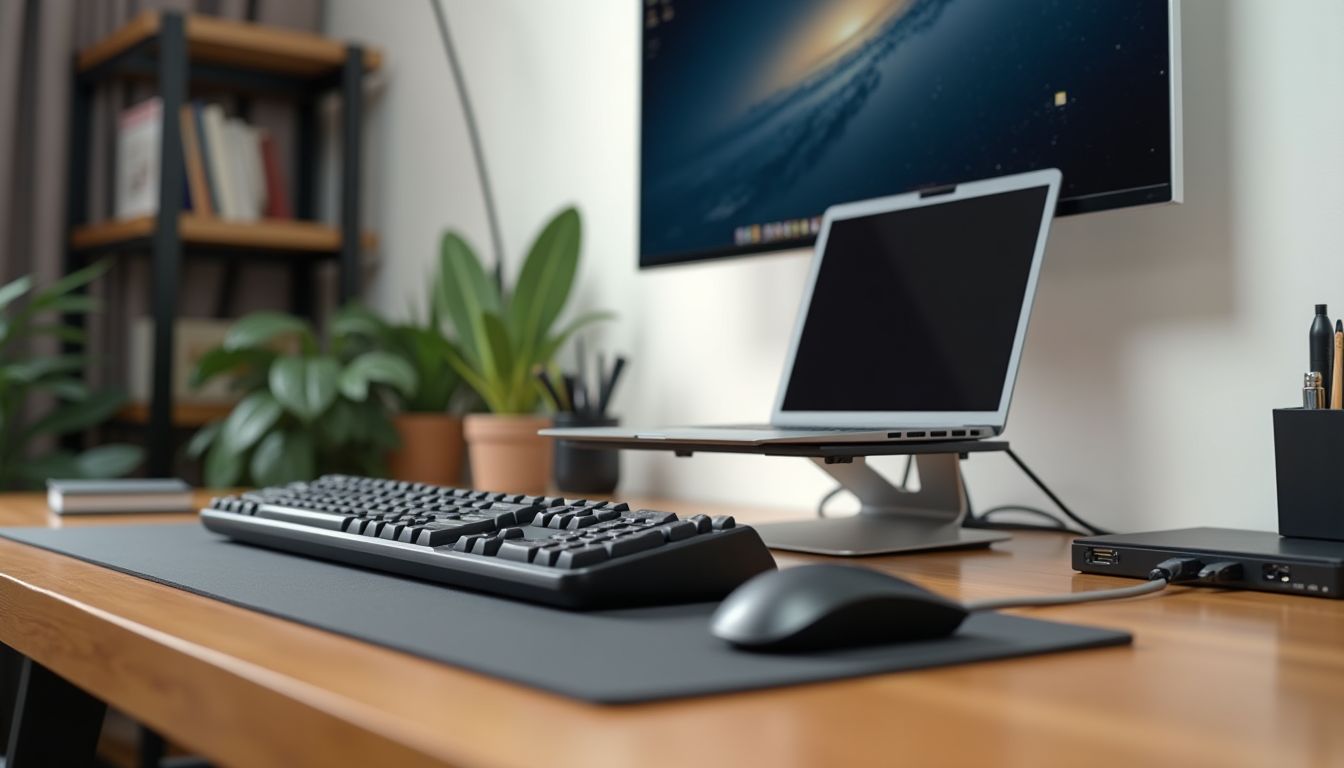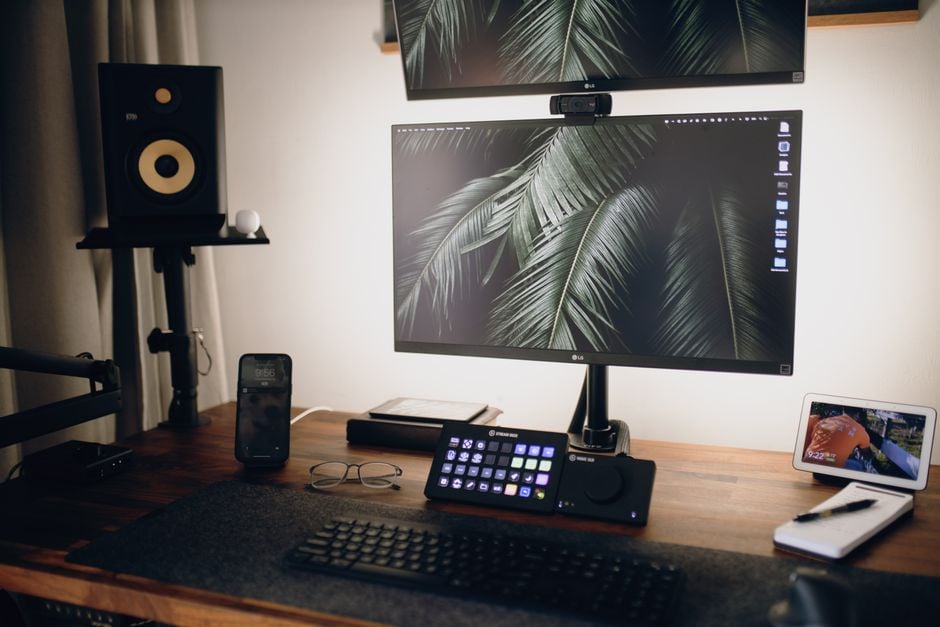
Working from home has long ceased to be just a forced measure — for many, it is a conscious choice that offers flexibility and comfort. However, true comfort is impossible if your desk turns into a web of wires that need to be reconnected every time you decide to change locations. This is where a docking station for home office work comes to the rescue — a device capable of turning any laptop into a full-fledged workstation in seconds.
According to the recommendation of the ComfortShop editorial team, before choosing, you should not just look at the price tag, but clearly understand which usage scenarios are key for you. This review will help you organize everything you need to know about modern docking stations and choose the ideal assistant for your home office.
Article Contents
- What is a docking station and why do you need it
- Key criteria for choosing the best docking station for a laptop
- Review of docking stations for PCs: does a desktop need one
- Universal docking station for home and office: compromise or ideal
- PC accessories overview: what else to add to the cart
- Connection, setup, and common issues
- Conclusion:
What is a docking station and why do you need it
Essentially, a docking station is a high-power port hub that connects to a laptop or PC via a single cable (usually USB-C or Thunderbolt). It takes on the task of expanding your device's capabilities, allowing you to connect external monitors, keyboard, mouse, network cable, and memory cards simultaneously. The main magic is that you bring your laptop home, plug in one cable, and instantly gain access to all your peripherals, just like on a desktop computer.
For those working on an ultrabook with a minimum of ports, this is not just a convenience, but a production necessity. Modern laptops often sacrifice USB-A and HDMI for a thin chassis, and without a universal docking station, you risk being left with a flash drive in hand with no way to connect it.
Key criteria for choosing the best docking station for a laptop
Choosing the best docking station for a laptop means finding a balance between performance, portability, and compatibility. ComfortShop experts advise paying attention not only to the number of ports but also to their bandwidth. For example, having Thunderbolt 4 provides speeds up to 40 Gbps, which is critical for working with 4K monitors at 60 Hz or connecting high-speed external SSDs.
Power delivery and video output:
The first thing to look at is Power Delivery (PD). If your laptop charges via USB-C, the docking station must provide sufficient power (usually from 65W to 100W) to power the laptop and peripherals simultaneously. The second point is the number and quality of video ports. For comfortable work with spreadsheets and text, one HDMI 2.0 is enough, but for designers and programmers, a docking station for connecting a monitor must support two independent displays with high resolution.
Equally important is the presence of a Gigabit Ethernet port. Home Wi-Fi can be unstable during video conferences, while a wired connection guarantees stable ping and no packet loss. Also, check the number of USB-A ports: a keyboard, mouse, printer, and webcam can take up 3-4 slots right away.
Review of docking stations for PCs: does a desktop need one
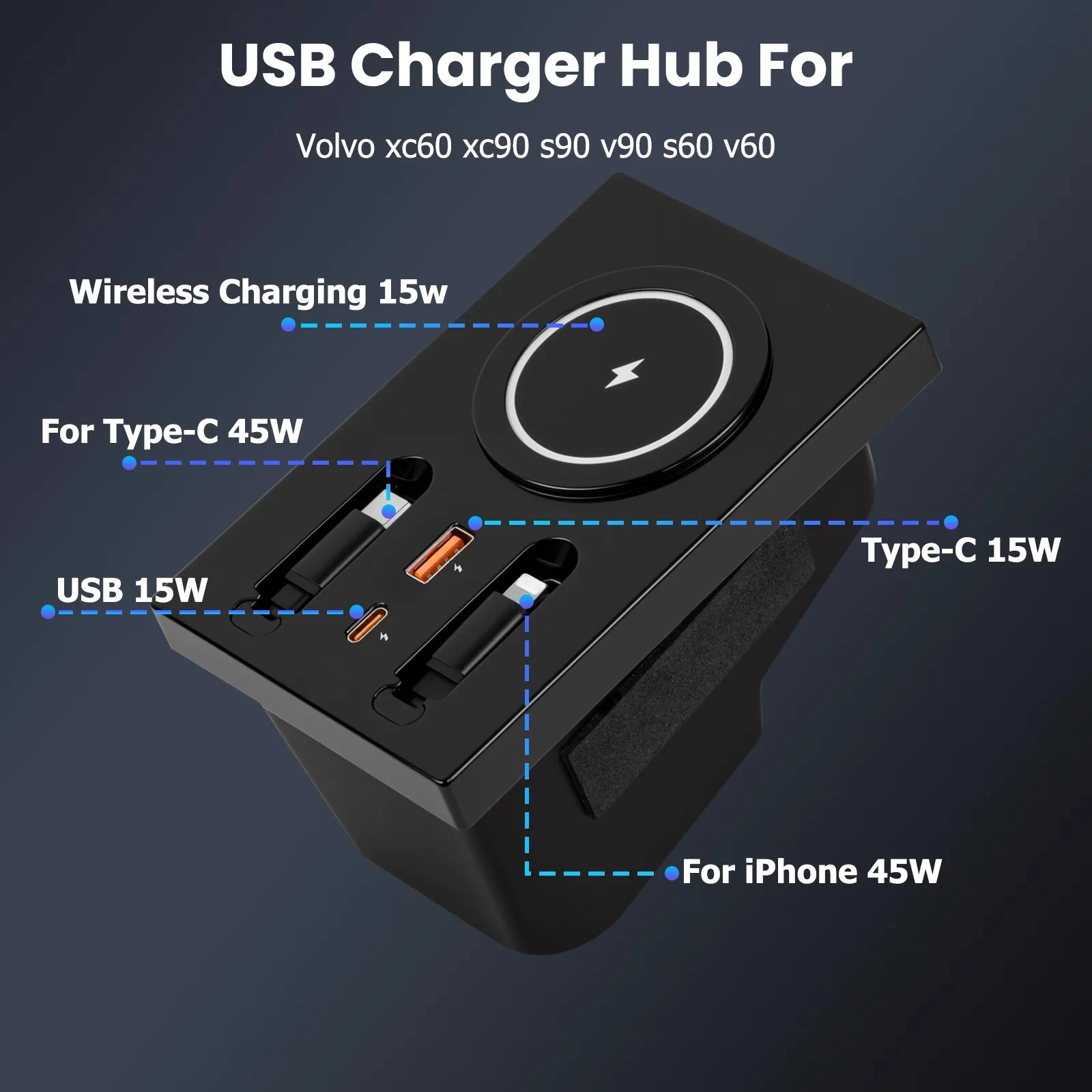
There is a stereotype that docking stations are only needed by laptop owners, but a review of docking stations for PCs proves otherwise. In many office or home system units, the ports are located under the desk, and having to bend down to the case every time you need to connect a flash drive or card reader is simply inconvenient. An external docking station solves the ergonomics problem by placing all necessary connectors right on the desk.
Additionally, older PCs often lack modern USB-C ports, let alone high-speed SD card slots. An external docking station connected via regular USB 3.0 can add these connectors, extending the life of your old but still powerful computer. As ComfortShop reviewers note, this is a budget-friendly upgrade option without replacing the motherboard.
Universal docking station for home and office: compromise or ideal
Many users look for a docking station for home and office in a single unit to avoid buying two separate devices. Universality here lies in compatibility with different operating systems (Windows, macOS, sometimes Linux) and different laptop brands. A good universal docking station automatically detects the connected device and installs drivers without requiring a reboot.
Advantages of universal models:
- Plug and Play: Minimal setup required upon first connection to any system.
- Compactness: Most universal stations easily fit into a backpack for trips between home and office.
- Wide range of ports: From the old reliable VGA (for office projectors) to the latest Thunderbolt.
However, it's worth remembering that universality sometimes limits maximum power. For example, some stations based on DisplayLink chipsets use software compression for video, which can slightly load the laptop's processor. This is unnoticeable for static document work, but for dynamic tasks, it's better to choose "native" Thunderbolt solutions.
PC accessories overview: what else to add to the cart
When buying a docking station, it's logical to immediately think about related PC accessories. A market overview shows that even the best docking station only fully reveals its potential when paired with quality peripherals. First of all, pay attention to cable management: a short but high-speed Thunderbolt 4 cable is often not included, and signal stability depends on its quality.
It's also worth looking into ventilated laptop stands. If the docking station covers part of the air intakes, the laptop may overheat under load. A vertical holder stand allows you to keep the laptop closed in a safe position, saving desk space. Don't forget about external webcams with high resolution — the built-in laptop camera often remains covered by the lid if you are working on an external monitor.
Connection, setup, and common issues
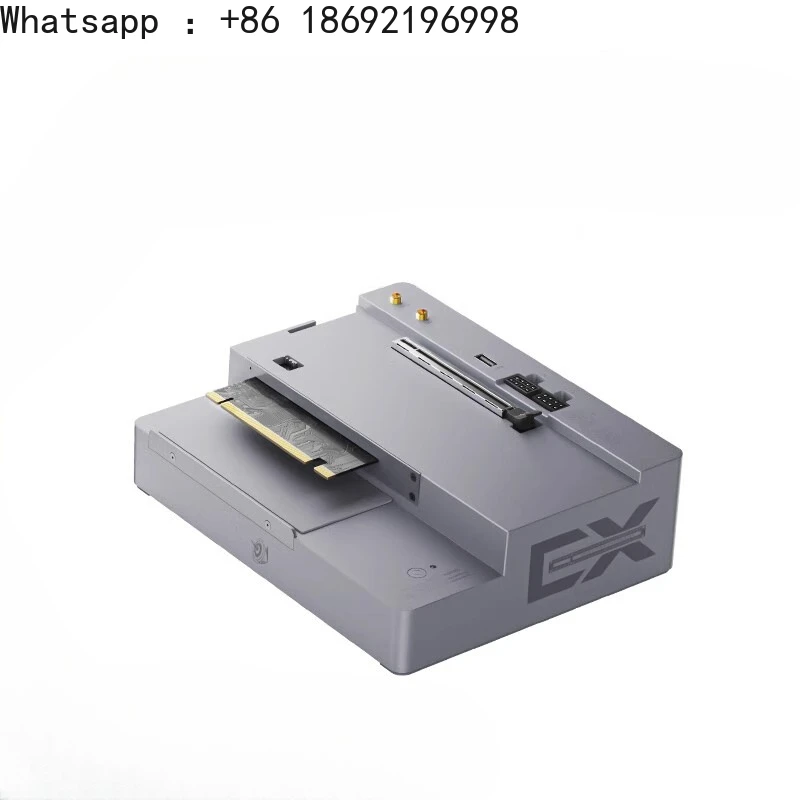
The installation process for a modern docking station is usually simpler than it seems. It's enough to connect the power supply to the station, and the station to the laptop. The system will automatically recognize the new device, and within seconds, the image will appear on the external monitor. However, users sometimes encounter a situation where the docking station for connecting a monitor does not display an image.
This is most often related to bandwidth limitations of the port on the laptop itself or outdated video chip drivers. Before purchasing, be sure to check your laptop's specifications: does its USB-C port support Alt Mode (video signal transmission)? If not, you will have to use DisplayLink-based docking stations, which transmit video via the regular USB protocol, but with slightly more latency.
Another nuance is compatibility with macOS. Apple Silicon has excellent Thunderbolt support, but sometimes limits the number of external displays (the base M1/M2 supports only one external monitor without special workaround docking stations). Keep this in mind if you are a MacBook Air owner.
Conclusion:
Investing in a quality docking station for home office work is an investment in your own productivity and back health, as it allows you to maintain good posture by looking at a large monitor instead of hunching over a tiny laptop screen. When choosing between hundreds of models, focus on the number and type of ports you need, charging power, and compatibility with your equipment. ComfortShop reviewers recommend not skimping on models with Thunderbolt support if you work with video or large data arrays, as stability and speed are paramount here.
Frequently Asked Questions
Will a universal docking station work for connecting a monitor to an old laptop?
Yes, most modern universal docking stations support connection via USB-C or USB-A, allowing you to output an image to a monitor even on an old laptop if it has the appropriate port.
What is the best docking station for a laptop for home office work with two monitors?
For working with two monitors, choose a model with DisplayPort or HDMI support and a power supply of at least 100W, for example, docking stations with a DisplayLink chipset, which ensure a stable connection.
Can a docking station for home and office be used as a permanent solution for a PC?
Yes, a docking station for home and office is great for a desktop PC if you need to quickly connect peripherals, monitors, and charging via a single cable, but it may have limitations for gaming due to bandwidth.
What PC accessories should be considered when choosing a docking station for office work?
When choosing, pay attention to the availability of Ethernet, USB-A 3.0, HDMI ports, and Power Delivery support, as well as compatibility with your operating system to avoid driver issues.