USB-C has become the universal connection standard for modern computers, smartphones, and peripherals. It would seem that choosing a USB Type-C cable for a PC is a matter of a few clicks, but in practice, a bad purchase results in slow charging, data loss, or even port damage. In this article, we will take a detailed look at what to pay attention to in order to avoid mistakes when choosing a USB-C cable, and which models are truly worth your attention. Based on recommendations from the ComfortShop editorial team, we have gathered the key technical nuances that will help you purchase a reliable accessory for your PC.
Article Contents
USB-C Standards: Why Data Transfer Speed Is Key
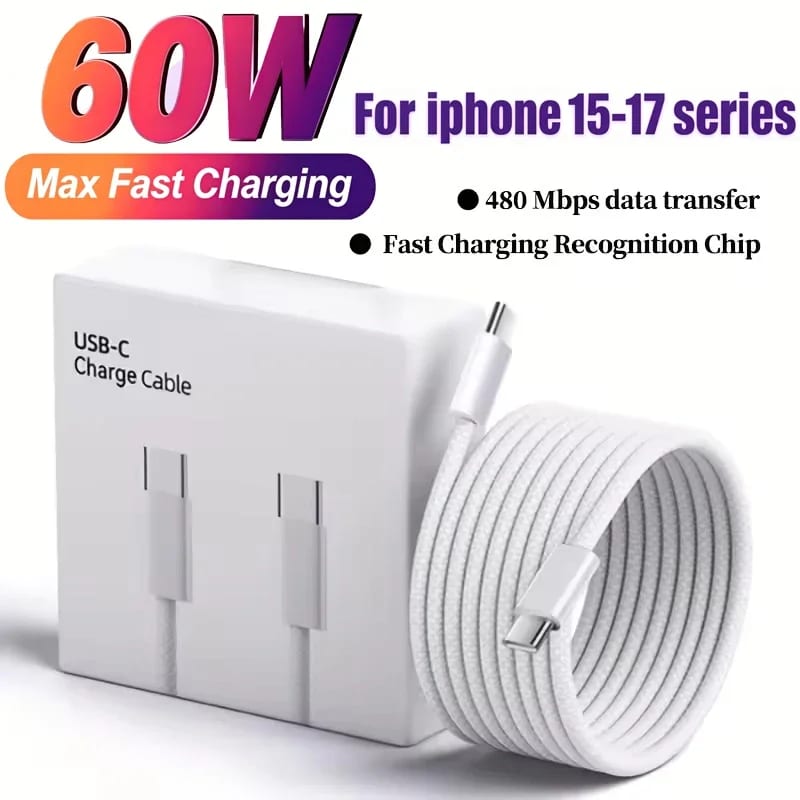
The first thing to understand when deciding which USB-C cable to choose for your computer is the standard generation. The USB-C connector is just a physical form factor, while speed is determined by the internal controller. USB 2.0 cables with Type-C connectors, limited to 480 Mbps, are still common on the market. This is critically insufficient for connecting a modern external SSD or monitor.
For productive work with a PC, you need to look for Gen 1 (5 Gbps), Gen 2 (10 Gbps), or Gen 2x2 (20 Gbps) markings. If you frequently transfer large amounts of data, don't skimp on this parameter. ComfortShop experts advise always checking the technical description: the label "USB 3.2" without specifying the generation often masks an outdated cable with low bandwidth.
Equally important is the Alternate Mode, which allows transmitting video signals over USB-C. If you plan to connect your laptop to a monitor with a single cable, make sure the accessory supports DisplayPort or Thunderbolt. Without this, you simply won't be able to output the image to the screen.
Charging Power: How Not to Burn Out Your Computer's Port
When choosing the best USB-C cables for a PC, it's important to understand the difference in charging capabilities. The standard 60W power is suitable for most smartphones and tablets, but modern laptops require 100W, and some gaming stations need up to 240W (USB PD 3.1 standard). Using a weak cable with a powerful device will lead to connector overheating or very slow charging recovery.
USB-IF certification deserves special attention. Cables without certification often have inflated specifications. In the USB-C cable ratings trusted by ComfortShop reviewers, models with a built-in E-Marker chip always lead. This microchip "negotiates" between the power supply and the device, preventing excessive voltage from being delivered. This is especially relevant for a desktop computer when the cable is used to charge a powerful laptop through a monitor port or docking station.
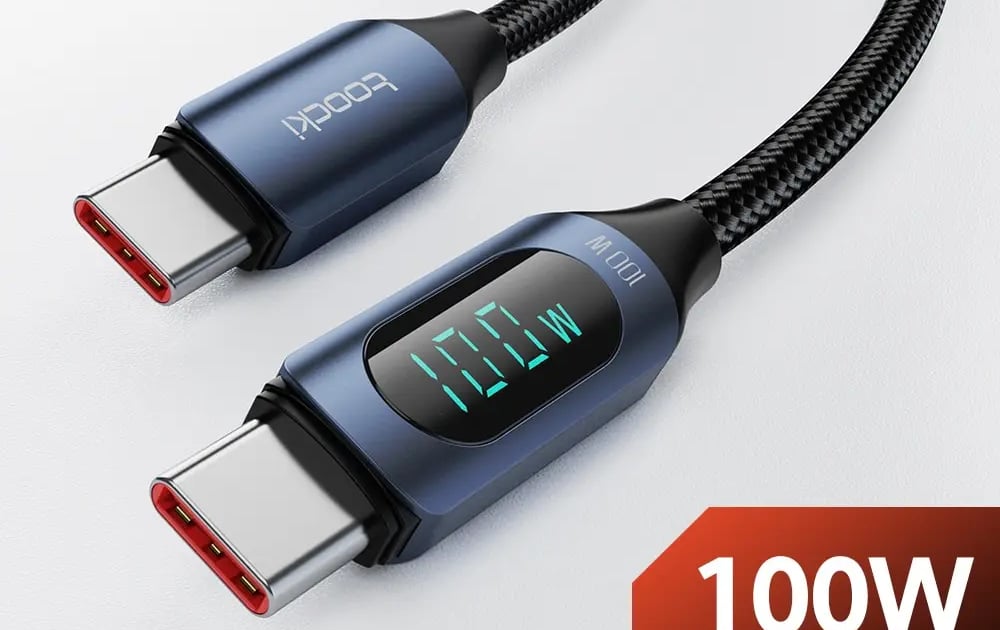
Pay attention to the Power Delivery (PD) specification. If a cable supports PD but doesn't specify the maximum power, it's better to avoid the purchase. A reliable USB Type-C cable for a PC always has clear markings like "100W" or "240W" directly on the connector housing.
Design and Materials: What Affects Durability
Even high-quality electronic components won't save a cable if it's made of brittle plastic. The weak point of any accessory is the area where the plug connects to the wire. In cheap models, there's no strain relief here, and after a few months of active use, the sheath cracks, exposing the shielding.
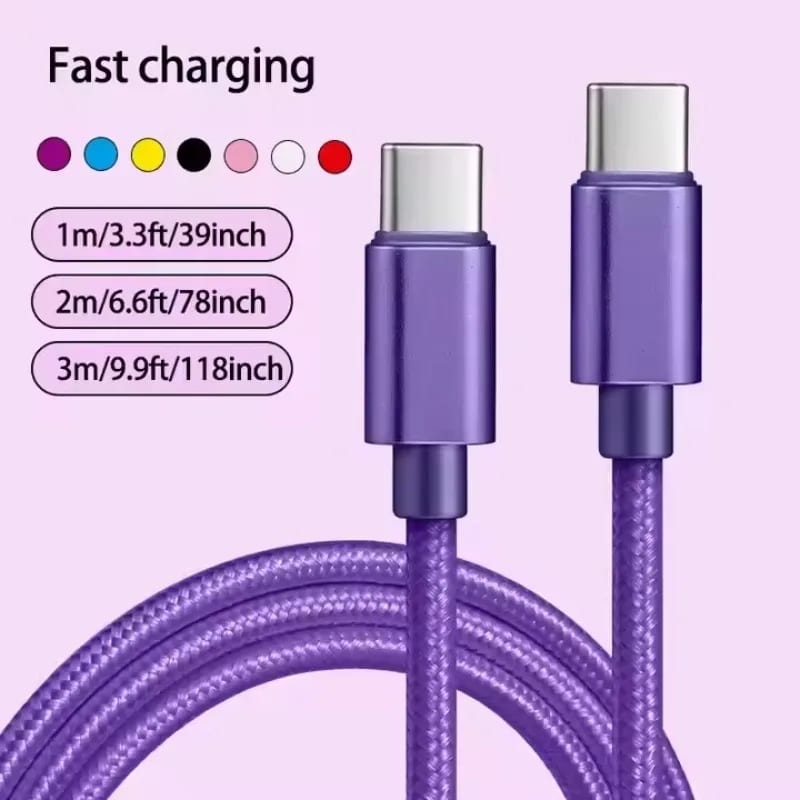
Materials that extend the life of a cable.
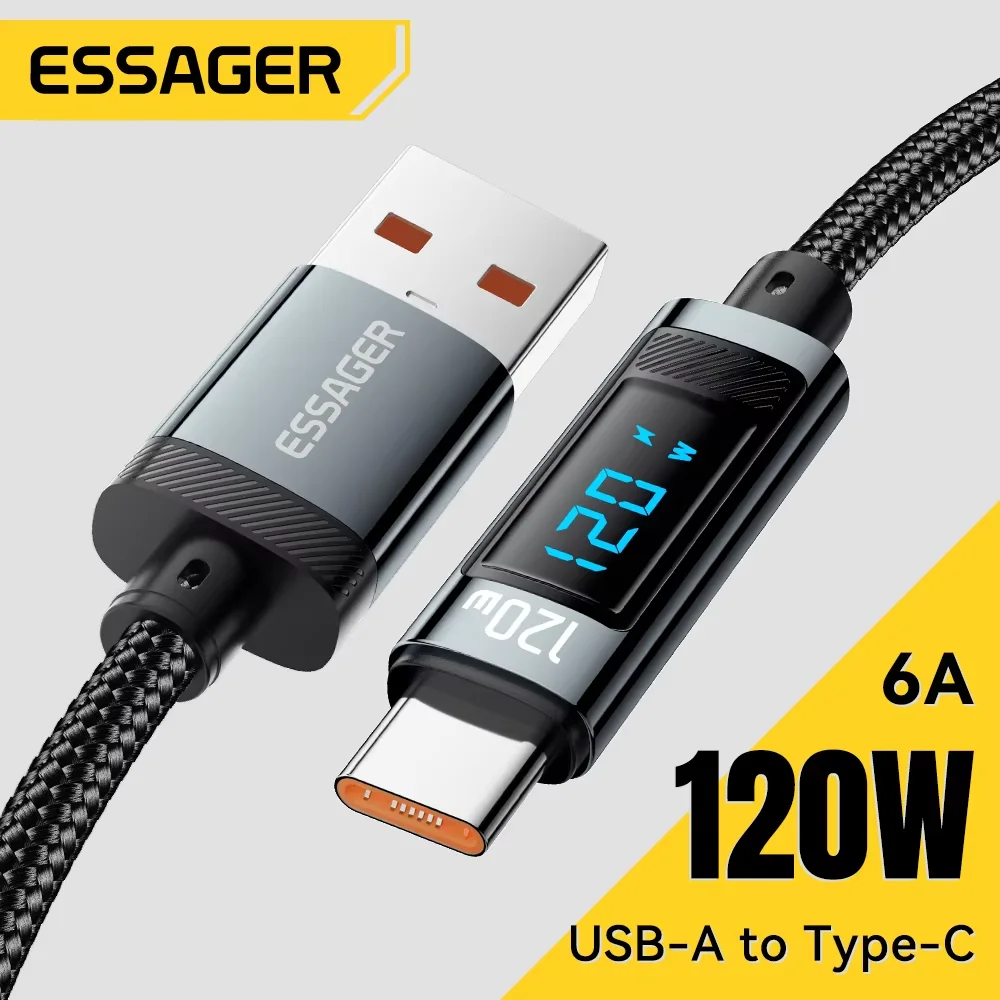
Nylon braiding is much more resistant to kinks than rubber or PVC. It doesn't stiffen over time and withstands tens of thousands of bending cycles. A metal connector housing also adds reliability, although it slightly increases weight. This isn't critical for a desktop PC, but if you frequently connect your laptop to peripherals, a lightweight yet durable cable will be more convenient.
Length is another factor that affects the signal. For data transfer at speeds of 10-20 Gbps, it's not recommended to use cables longer than 1.5-2 meters without active amplifiers. For charging, however, you can use three-meter options without losing power. As ComfortShop reviewers note, a universal one-meter cable is the sweet spot for most scenarios.
Thunderbolt and Alternatives: Is It Worth Paying Extra
If your task is to find the best USB-C cable for a PC with maximum bandwidth, you will inevitably encounter Thunderbolt 3 or 4 technology. Visually, it's the same Type-C, but the speed reaches 40 Gbps. Such cables can simultaneously transmit 4K/8K video, power a laptop, and support high-speed RAID arrays.
However, the extra cost is only justified when your computer has a corresponding port. You can connect a Thunderbolt cable to a regular USB 3.2 port, but it will work like a regular one, without any speed increase. Therefore, before purchasing, it's worth checking the specifications of your motherboard or laptop.
For most users looking for USB-C cable accessories for a PC, a quality cable with USB 3.2 Gen 2 (10 Gbps) support and 100W Power Delivery is sufficient. This covers the needs for connecting external drives, docking stations, and fast charging without unnecessary expenses.
Practical Tips: How to Test a Cable Before Buying
To avoid mistakes when choosing a USB-C cable, get into the habit of checking three key parameters. First, look at the connector: a quality plug has a solid housing without gaps, and the contact group inside is symmetrical and free of corrosion marks. Second, assess the stiffness of the sheath near the plug — it should bend smoothly rather than kink at a sharp angle.
What to look for in the specifications:
- Data transfer speed: at least 5 Gbps for external drives, 10 Gbps for professional work.
- Charging power: minimum 60W for smartphones, 100W for laptops.
- E-Marker presence: mandatory for cables rated above 60W.
- USB-IF certification: a guarantee of compliance with stated specifications.
Third, don't buy unbranded cables from dubious marketplaces. Saving 100-200 hryvnias could lead to a failed port on your motherboard, the repair of which will cost significantly more. In the USB-C cable ratings according to ComfortShop experts, models with transparent specification labeling and a manufacturer's warranty consistently hold high positions.
Conclusion:
Choosing a USB-C cable for your computer is a balance between power, data transfer speed, and mechanical reliability. Don't chase the cheapest uncertified options, because a quality USB Type-C cable for a PC will last for years and protect your equipment from unexpected failures. Armed with knowledge about standards, power, and construction, you can easily find a reliable accessory that will fully unlock your computer's potential.
Frequently Asked Questions
Are all USB-C cables the same in terms of data transfer speed?
No, speed depends on the standard (USB 2.0, 3.2, Thunderbolt 3/4) and can range from 480 Mbps to 40 Gbps, so always check the labeling on the packaging before purchasing.
How can I tell if a USB-C cable supports 100W charging?
Look for the "100W" or "5A" (5 amps) marking on the cable or in the specifications, as well as the presence of an E-Marker chip, which confirms support for the Power Delivery protocol.
Can I use one USB-C cable for a monitor, laptop charging, and file transfer?
Yes, but for this you need a universal cable with support for DisplayPort Alt Mode, Power Delivery, and USB 3.2 Gen 2 — otherwise, you'll have to buy separate cables for different tasks.
What is the optimal USB-C cable length for connecting to a PC without signal loss?
For data transfer at speeds of 10 Gbps and above, a length of up to 1 meter is recommended, while for charging, you can use cables up to 2 meters without significant losses.